PDF how-to
How to split a PDF
Splitting a PDF turns one PDF into two or more separate files. The best method depends on whether you know the document visually, already know the page ranges, or need every page as its own file.
Updated August 20, 2026
Quick answer
Choose the boundaries, create the outputs, verify each file.
Open the PDF in eggPDF, choose visual cuts, manual ranges or every-page mode, define the boundaries, then create the files and check the first and last page of every output.
In eggPDF
Split a PDF step by step with eggPDF
eggPDF offers visual cut points, manual ranges and one-file-per-page output. Choose the method that matches the result you actually need.
Result: two or more separate PDFs created from one source PDF.
- 1
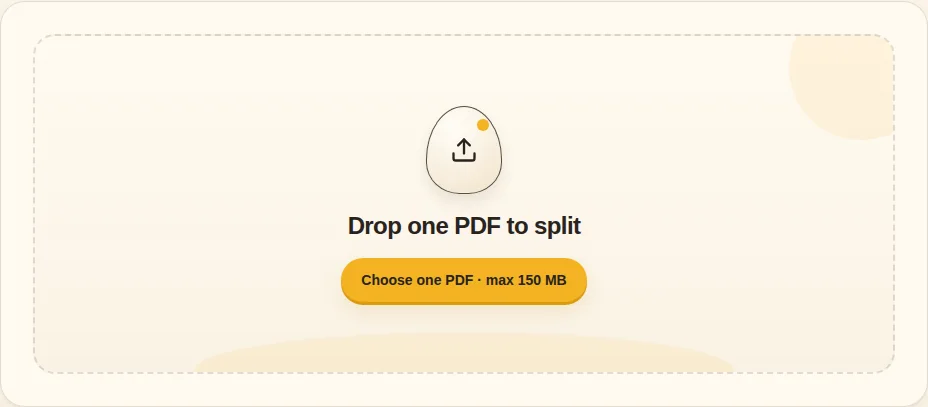
Choose one PDF
Open the document you want to divide and let the page previews load where available.
Choose one PDF - 2
Choose a split method
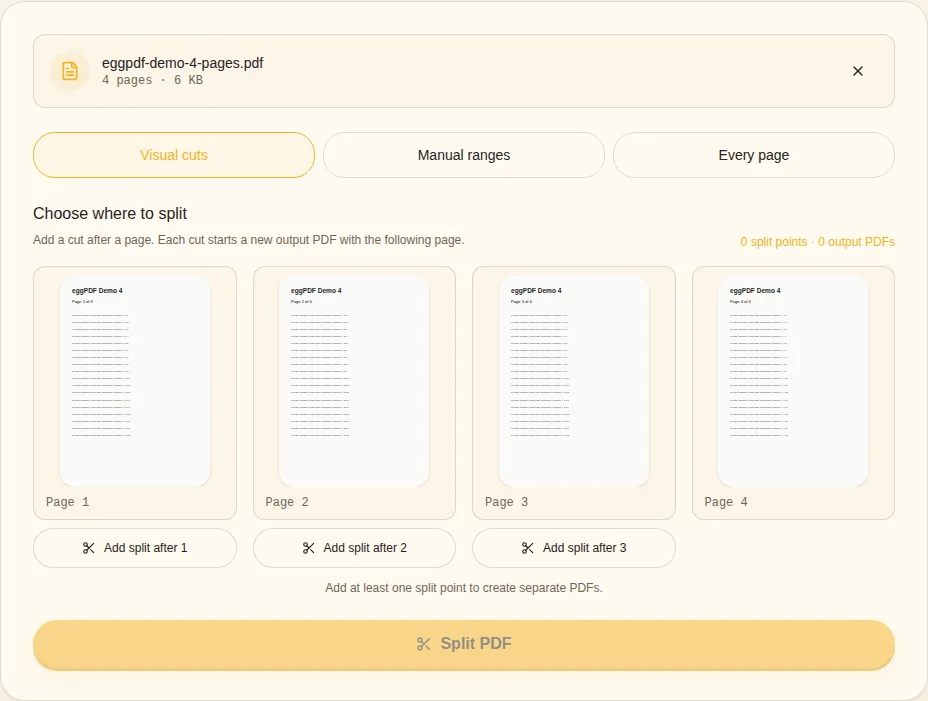
Use visual cuts when you know the document by sight, ranges when you know page numbers, or every-page mode for page-independent documents.
Visual cuts / Manual ranges / Every page - 3
Set boundaries
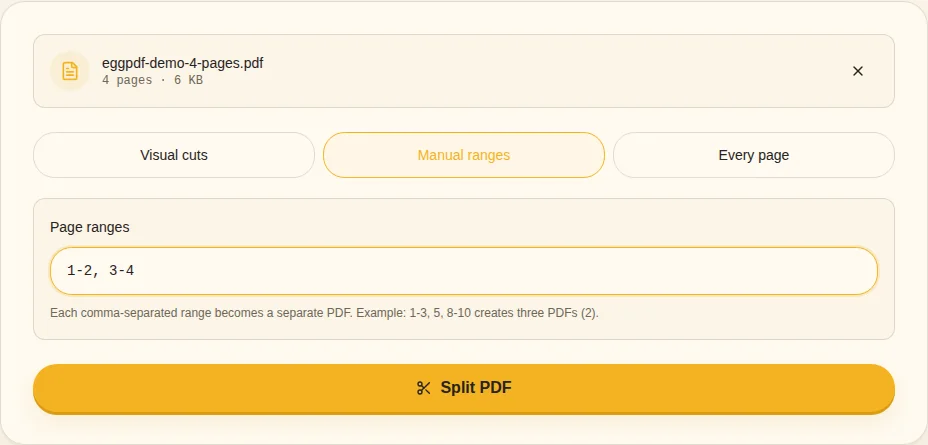
Place cut points or enter ranges such as 1-3, 4-7. Preview the boundary pages before creating the outputs.
Split after page / Page ranges - 4
Split and verify
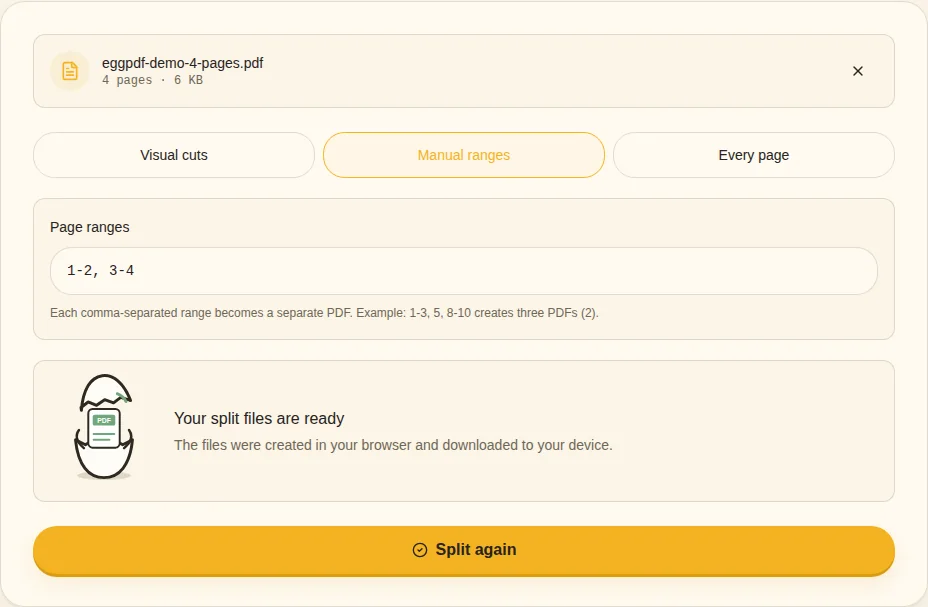
Create the files, then open the first and last page of each output to confirm that no boundary page is missing or duplicated.
Split files ready
Choose Split only when you want multiple files
- Use Extract for selected pages in one PDF
- Check every boundary page
- Use clear output filenames
- Rotate sideways pages separately if needed
Visual cuts vs page ranges
Visual cuts are useful when you recognize sections by their pages but do not know the exact numbers. Manual ranges are faster when the boundaries are already known. The right method should reduce the chance of placing a cut one page too early or too late.
Split vs Extract
Split creates multiple output files. Extract creates one new PDF from selected pages. Pages 1-5 and 6-10 as two files is a Split job. Pages 2, 7 and 9 together in one new PDF is an Extract job.
Open Extract Pages →What to verify after splitting
Open at least the first and last page of every output. Confirm that boundary pages are not missing or duplicated, filenames are understandable and page orientation is still correct. This check is especially important when a long source PDF contains sections of different lengths.
Related guides