PDF how-to
How to merge PDF files
Merging PDFs means combining two or more PDF files into one document. The important part is not just clicking Merge: the source files, their order and the final verification determine whether the resulting PDF is actually ready to send.
Updated August 20, 2026
Quick answer
Choose, order, merge, verify.
Select the final PDFs, arrange them in the sequence you want, merge them locally with eggPDF, then open the result and check the first page, last page and transitions between source files.
In eggPDF
Merge PDFs step by step with eggPDF
Use the real merge workflow below as a checklist. The PDF contents stay in your browser while eggPDF creates the combined file.
Result: one PDF containing the selected files in the order you chose.
- 1
Choose your PDFs
Add the final PDF files you want to combine. Check similar filenames before continuing so an older draft does not slip into the result.

Choose PDF files - 2
Set the file order
Drag files on desktop or use the move controls on touch devices. The list order becomes the page order in the merged PDF.
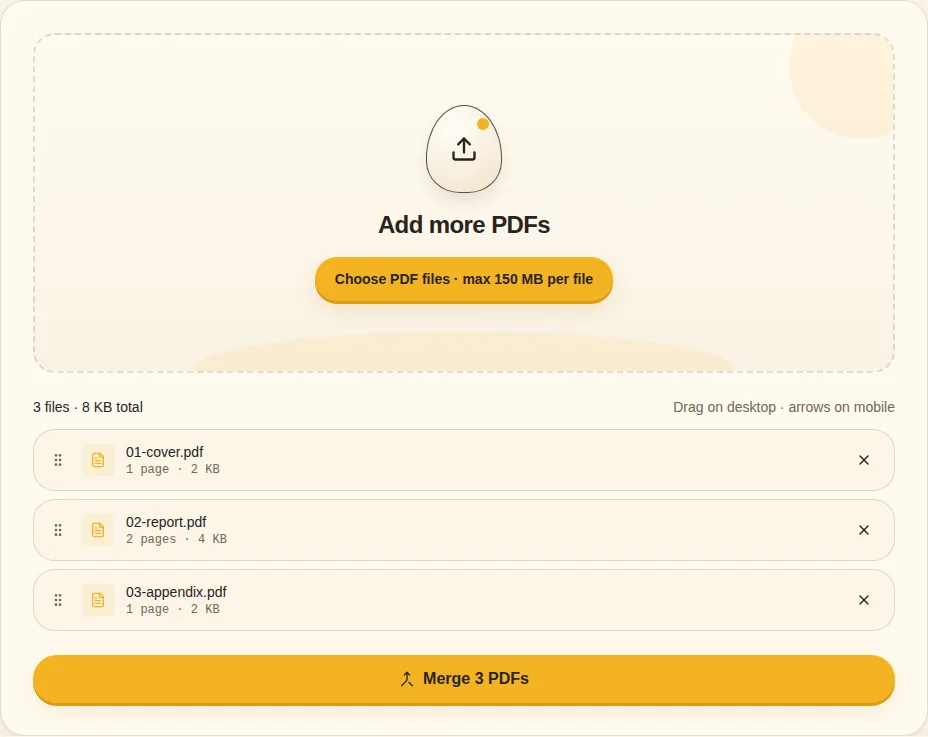
Drag to reorder / Move up / Move down - 3
Merge locally
Start the merge once the sequence is correct. Keep the tab open while your browser builds the new PDF.
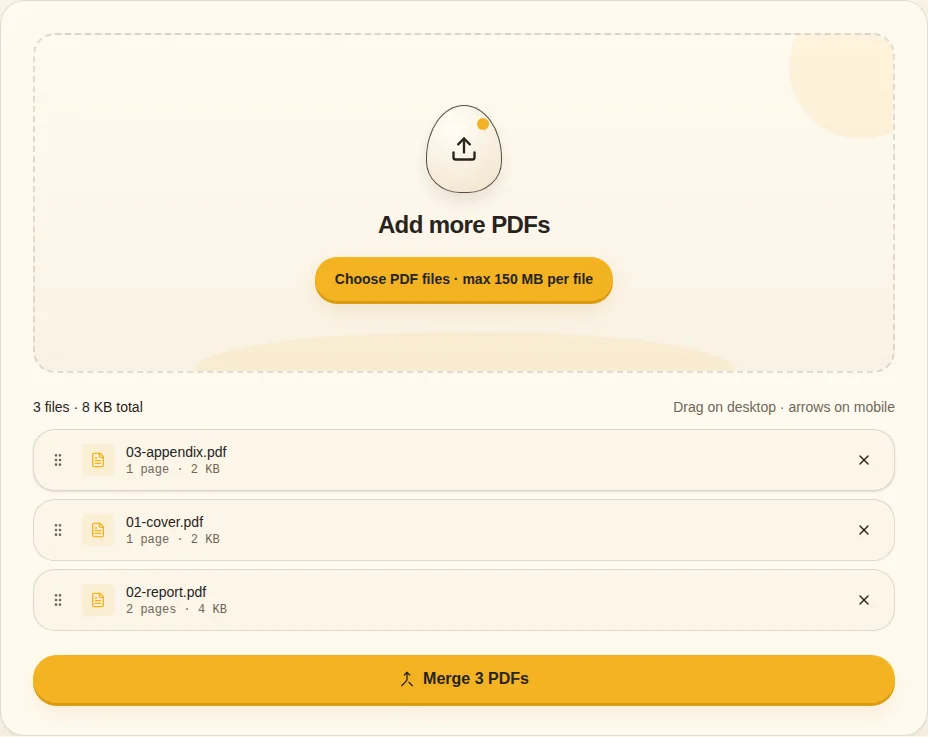
Merge PDFs - 4
Verify the download
Open the result and check the first page, last page and the transition between each source file.
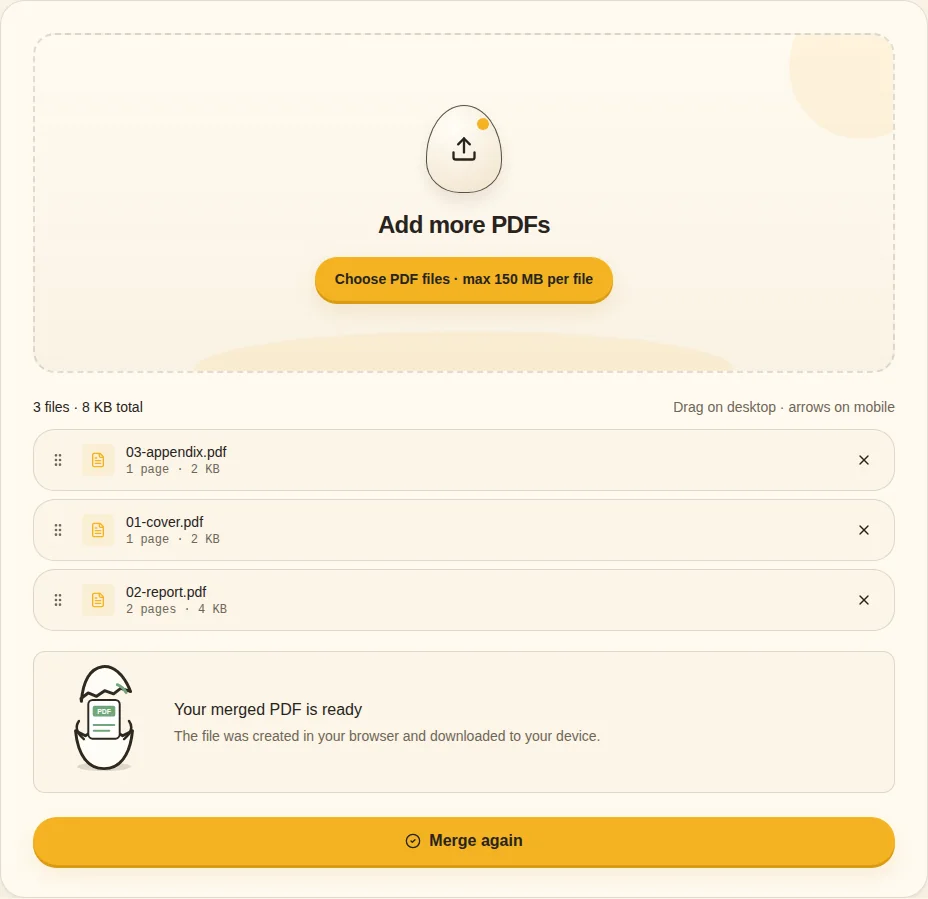
Merged PDF ready
Check before you send it
- Correct source files
- Correct file order
- No missing or duplicate pages
- Expected page orientation
Common merge mistakes
The most common problems happen before the merge itself: an outdated source file is selected, the attachments are in the wrong order, or a duplicate file is included twice. Treat the file list as the table of contents for the final PDF and review it before starting the merge.
Does merging reduce PDF quality?
A page-level merge does not need to turn every page into an image. eggPDF combines PDF pages rather than intentionally rasterizing or recompressing them. The source PDFs still determine the underlying quality of their text, images and graphics.
When Merge is the wrong tool
If you only need selected pages from a long PDF, extract those pages instead of merging full documents. If one document needs a different internal page order, organize that PDF first and merge the corrected file afterward.
Related guides