PDF how-to
How to extract pages from a PDF
Extracting pages creates one new PDF from only the pages you choose. It is useful when a long document contains a smaller section you want to keep or share without sending the full source PDF.
Updated August 20, 2026
Quick answer
Choose the pages you need, keep them together, verify the new PDF.
Open the source PDF in eggPDF, select the pages or ranges you need, confirm the selection, create the new PDF and check the first page, last page and order before sharing.
In eggPDF
Extract PDF pages step by step with eggPDF
Extract creates one new PDF from only the pages you select. It is the right choice when you want a subset of pages together in a single output file.
Result: one new PDF containing only the selected pages.
- 1
Choose the source PDF
Open the document that contains the pages you want to keep. The original file stays unchanged.
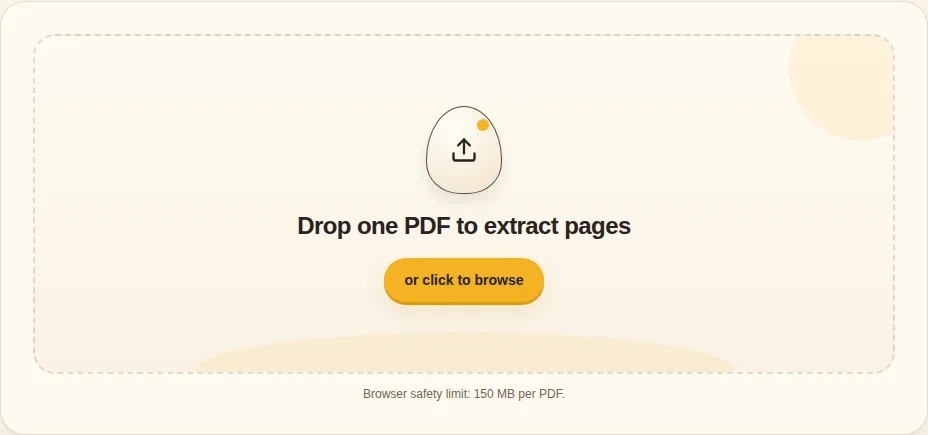
Choose PDF - 2
Select pages
Use page previews or manual page ranges to choose exactly what belongs in the new document.
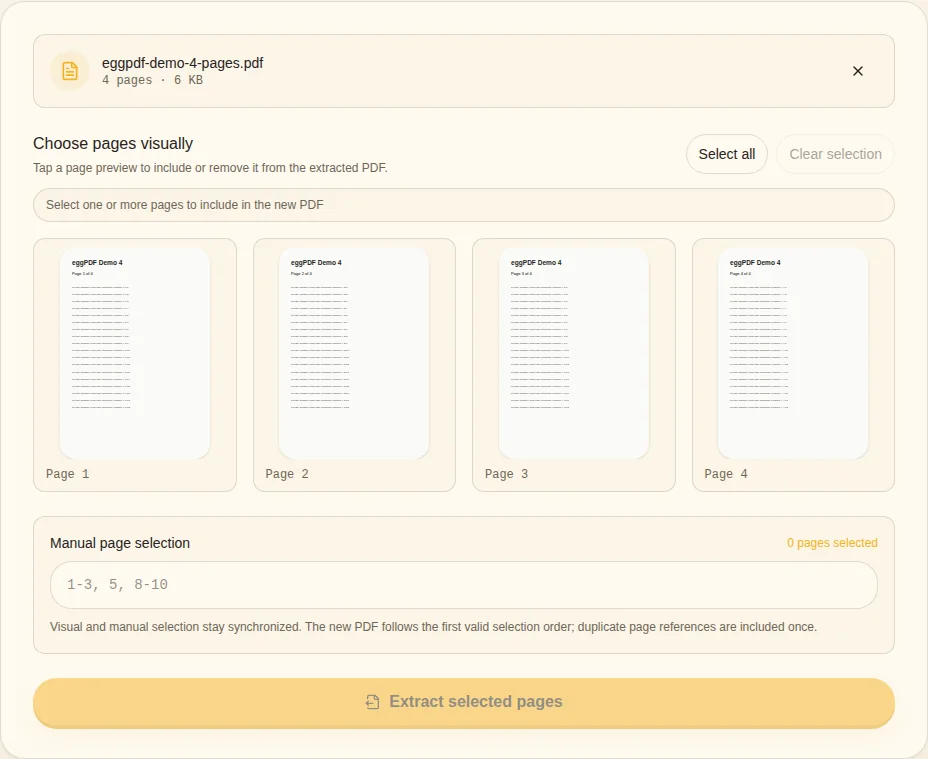
Select pages / Page ranges - 3
Check the selection
Confirm that the selected pages are complete and do not expose pages you did not intend to share.
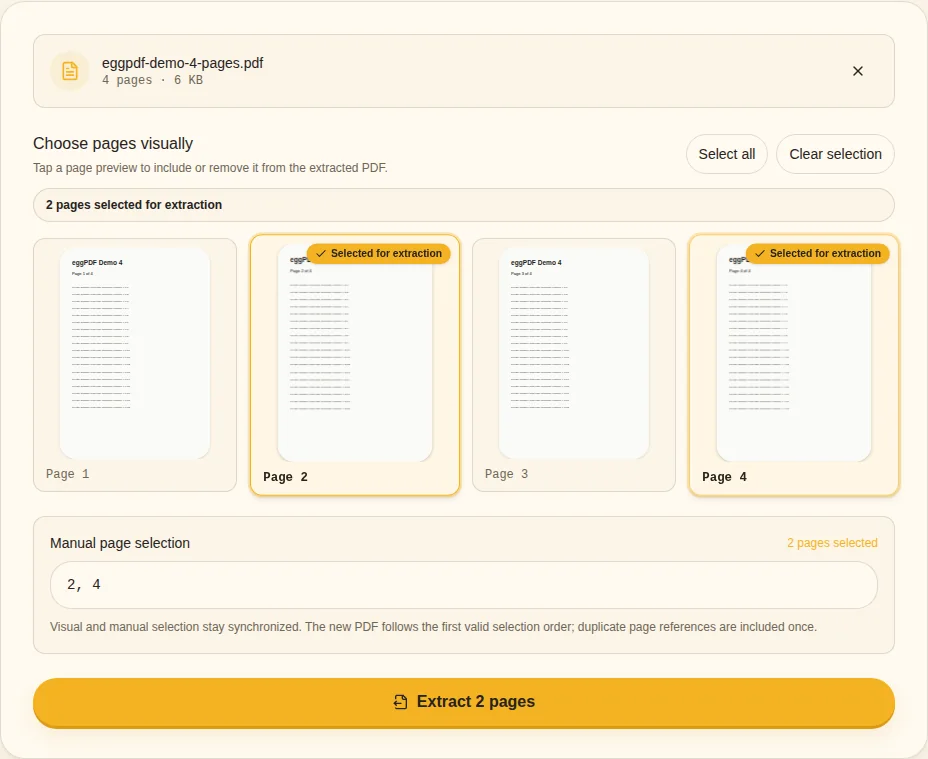
Selected pages - 4
Extract and verify
Create the new PDF, then open it and check the first page, last page and page order.
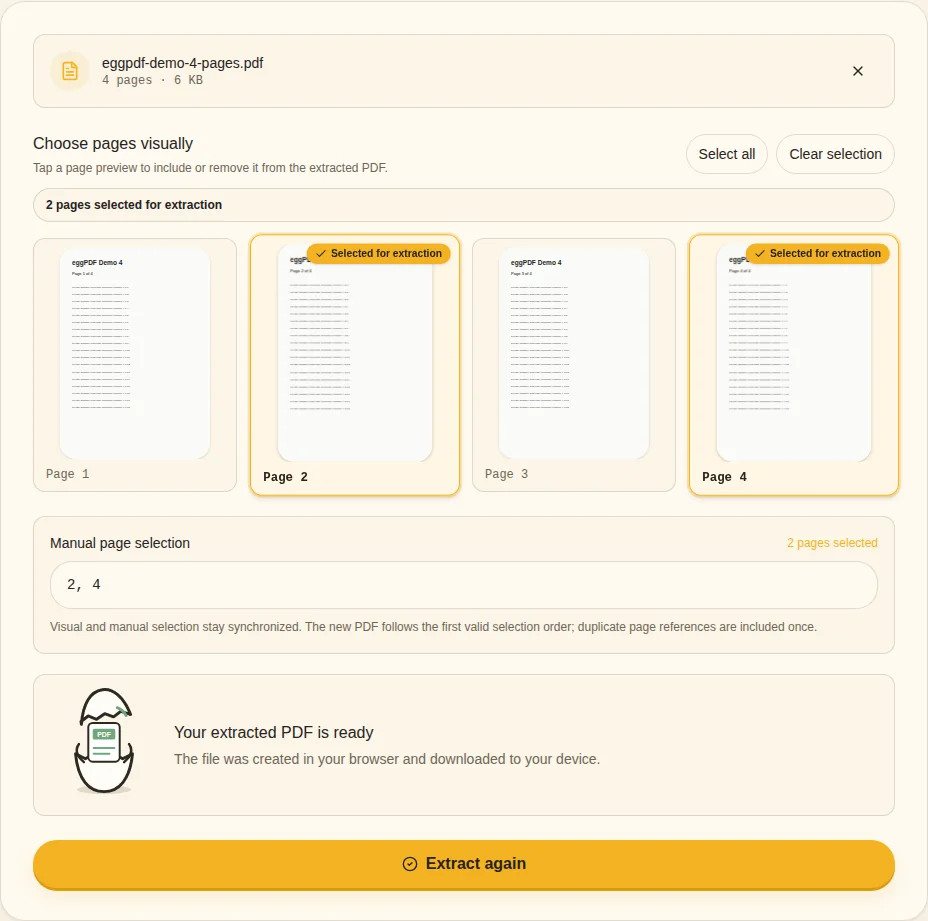
Extracted PDF ready
Extract and Split solve different jobs
- Extract keeps selected pages together
- Split creates multiple files
- Check sensitive pages before sharing
- The original PDF remains unchanged
Extract vs Split
Extract is for selected pages that should stay together in one new PDF. Split is for turning one document into multiple files. If you want pages 2, 7 and 9 in one output, use Extract. If you want pages 1-5 and 6-10 as two outputs, use Split.
Open Split PDF →Check sensitive documents before sharing
Extraction is often used to send only part of a contract, report or application. Review the selected pages carefully so the new file does not contain an extra page with personal, financial or confidential information.
What happens to the original PDF?
The source PDF remains unchanged. eggPDF creates a new file from the selected pages, so you can return to the original if you need a different selection later.
Related guides